Image to GIF AI Generator: Bring Any Picture to Life
Turn a still picture into a looping animated GIF with image to GIF AI. Upload a photo or drawing, describe the movement you want, and AIGIFGO's AI image to GIF generator animates it for you.
Powered by
Seedream
Nano Banana
GPT Image
Grok Image
Image to GIF AI Examples
Browse these image to animated GIF AI examples to see how different pictures can move. Each card shows the original image, the GIF and the prompt behind it, from an AI photo to GIF of a pet to a waving gray cat. Choose Recreate to load the same picture and prompt into our AI GIF maker from image, then change the movement or upload your own photo.
OriginalGIF
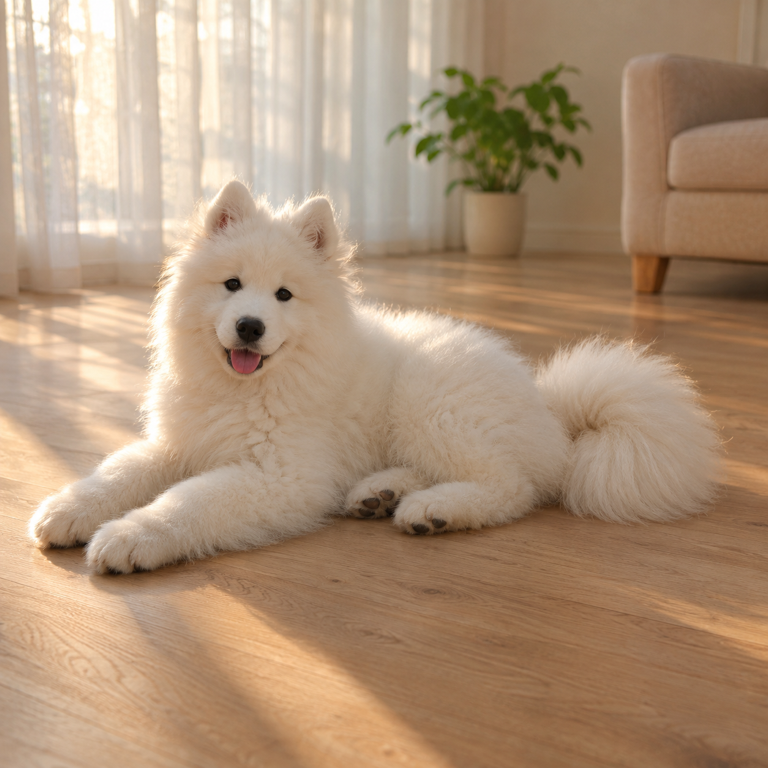
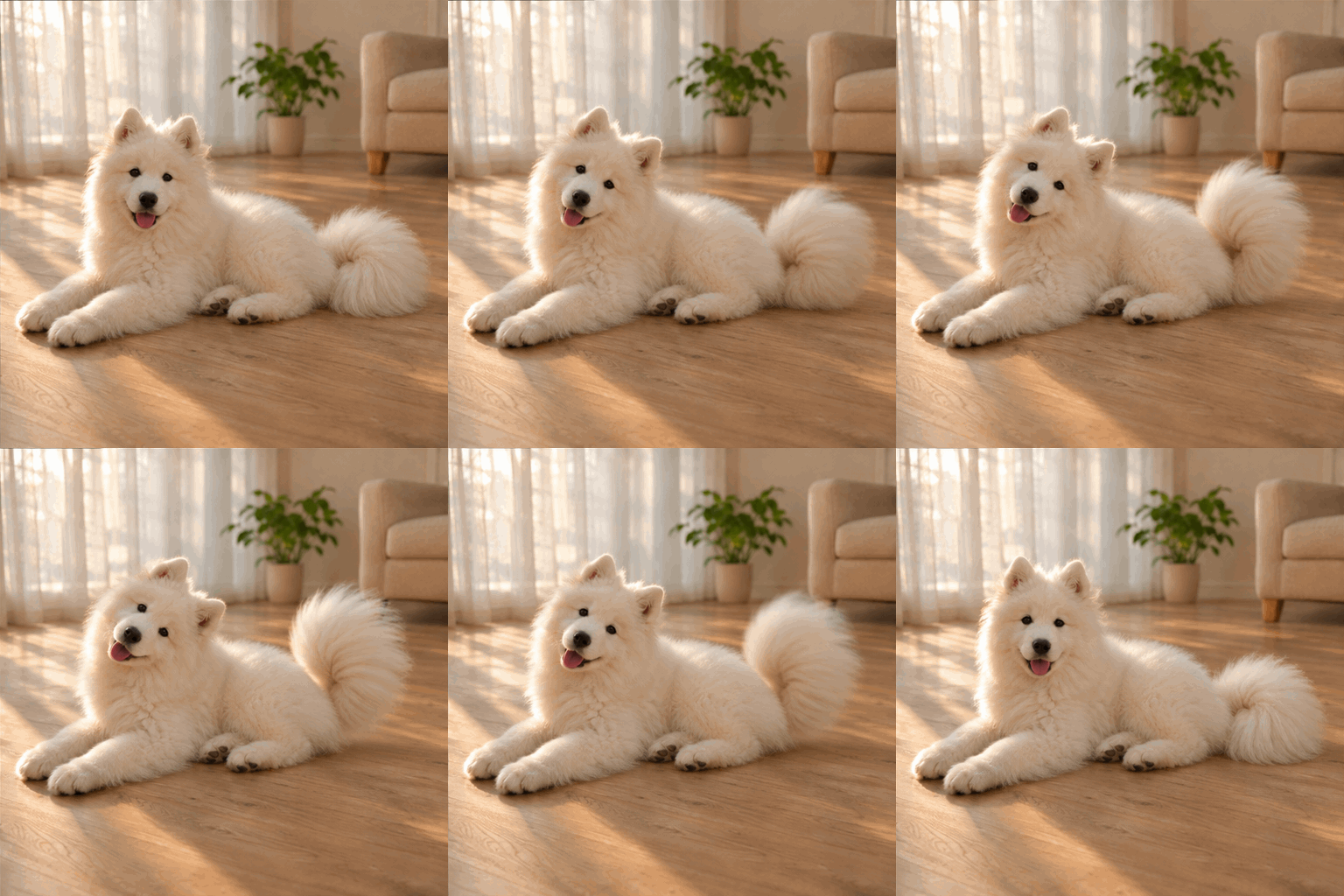
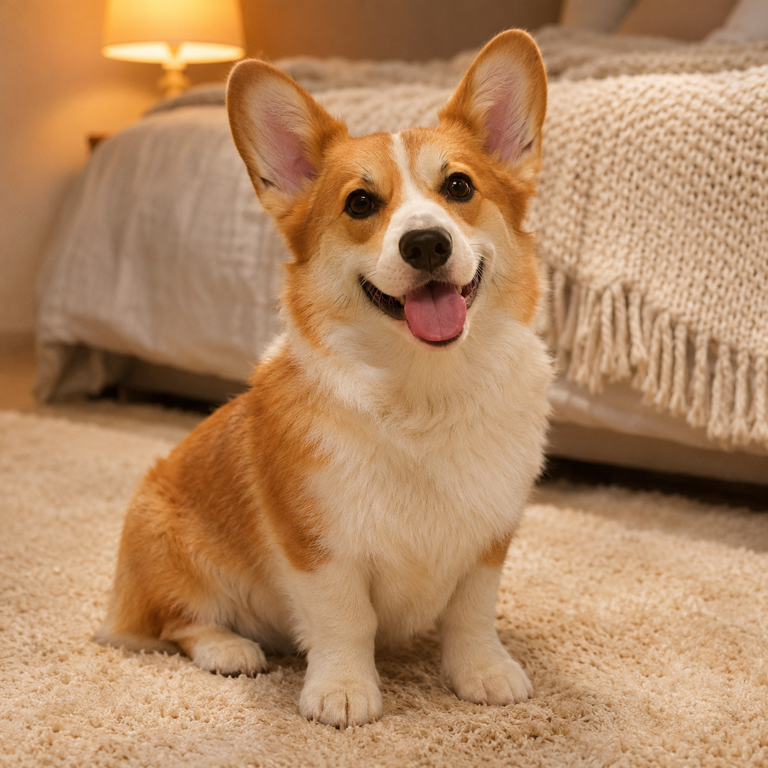
Pet photo
PromptMake the dog tilt its head and wag its tail slowly. Keep the background still.
OriginalGIF
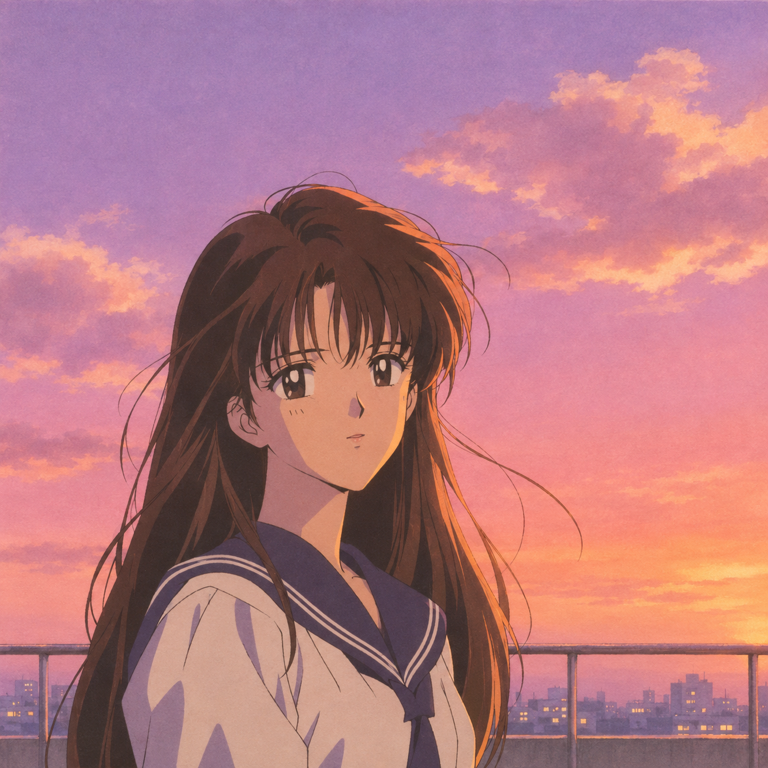
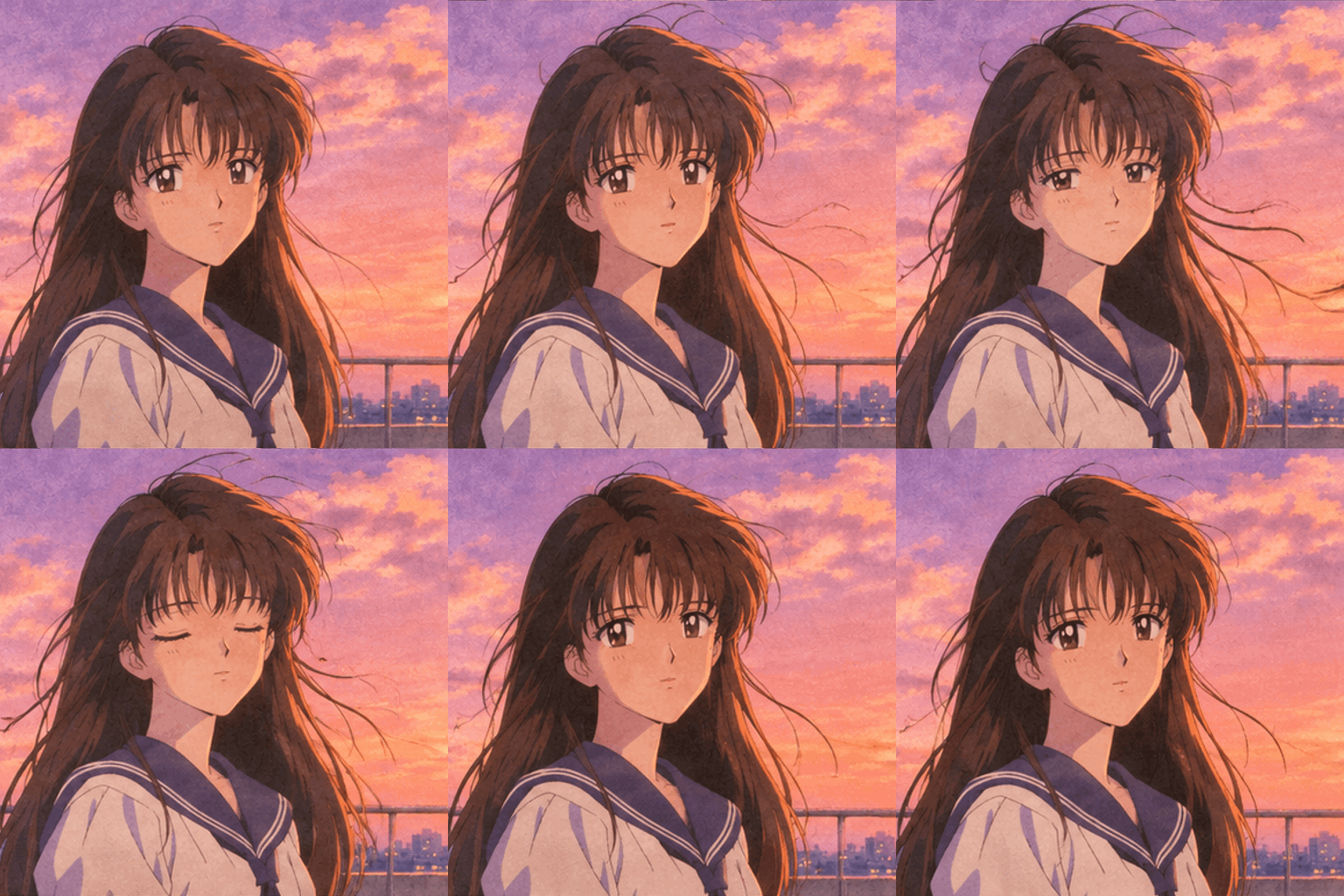
Anime character
PromptMake the character blink and let her hair sway gently in the wind.
OriginalGIF
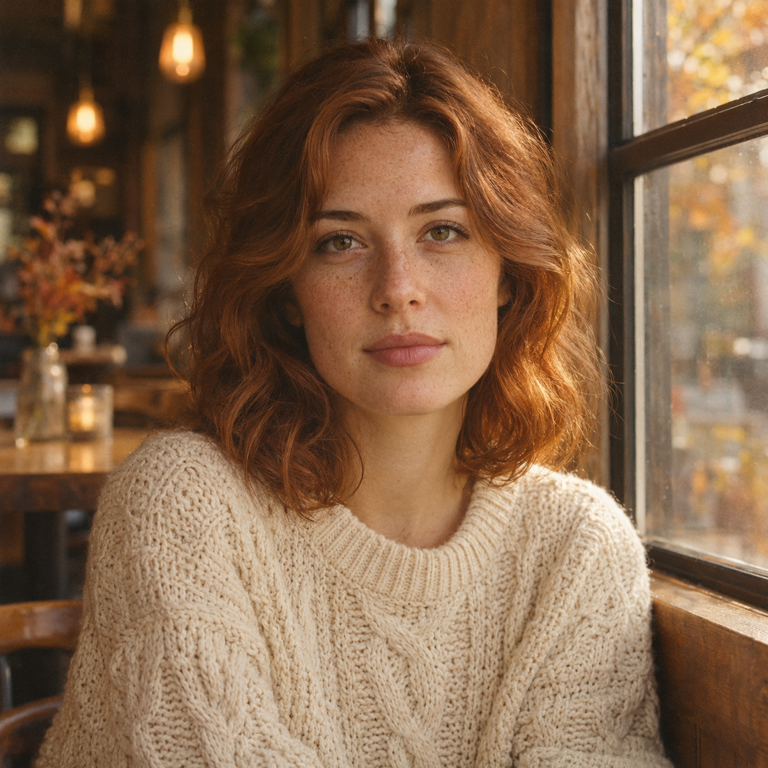
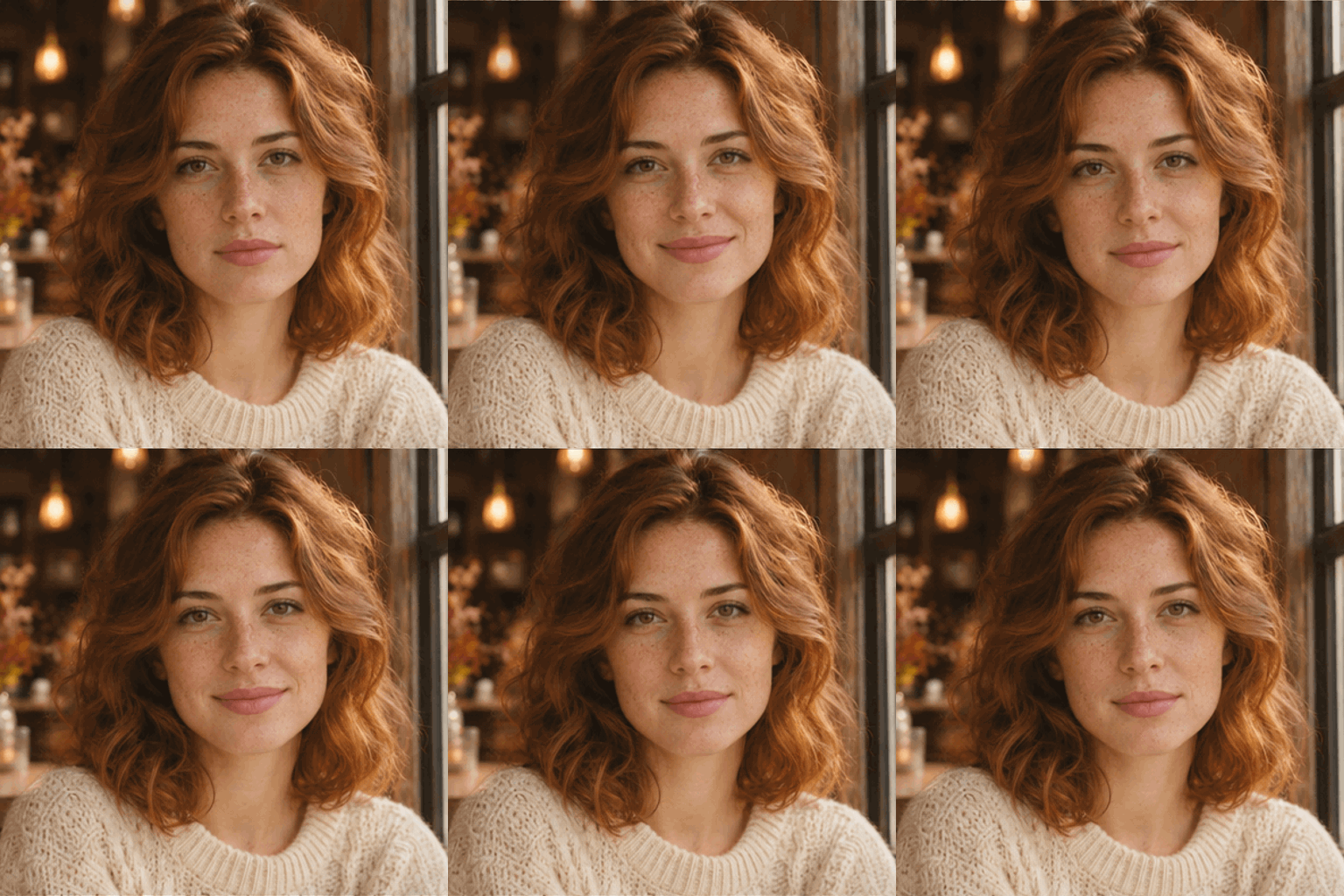
Portrait
PromptMake the person smile and blink once. Keep the face and outfit unchanged.
OriginalGIF
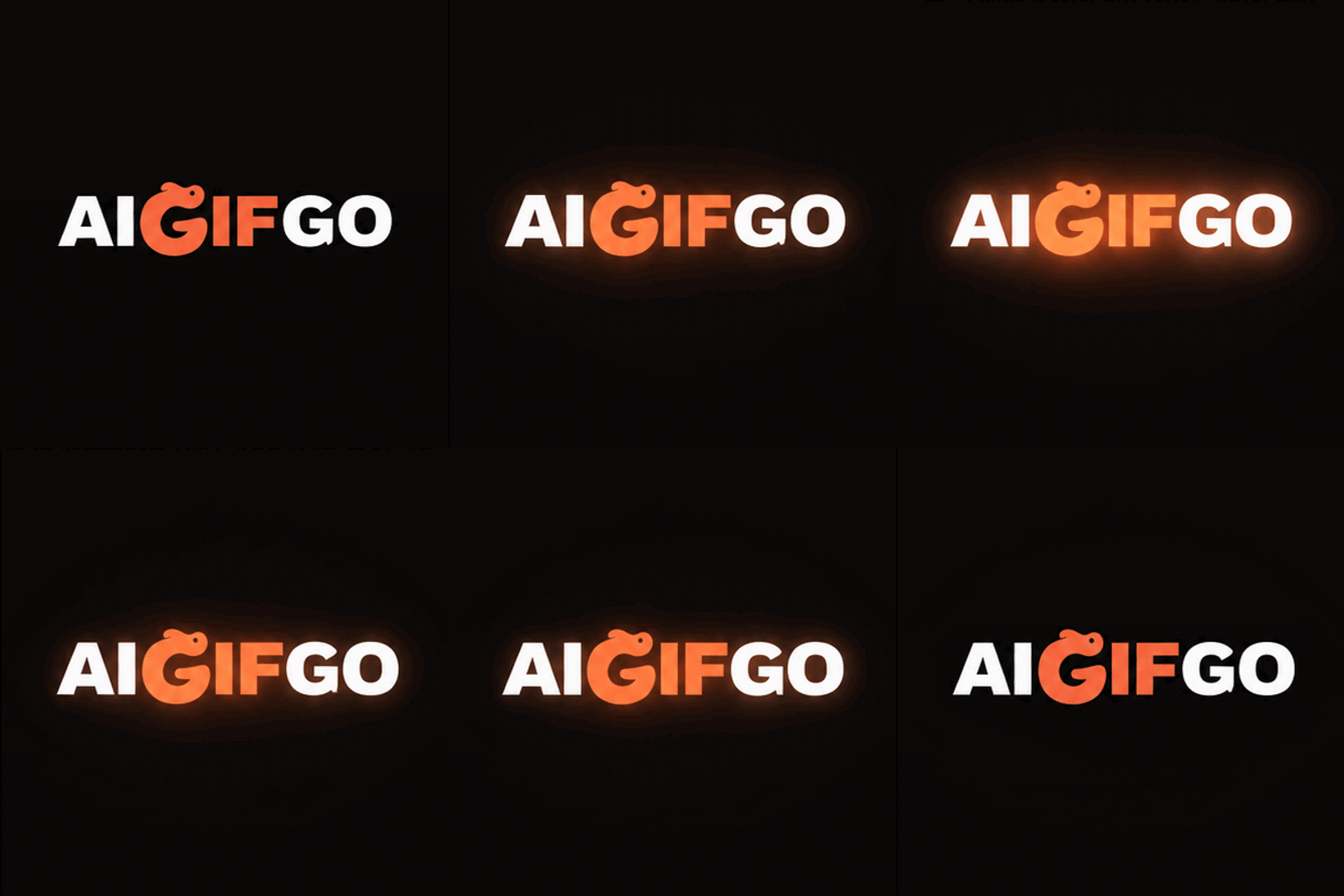
Logo or icon
PromptMake the logo glow softly and pulse once. Keep the letters sharp and unchanged.
OriginalGIF
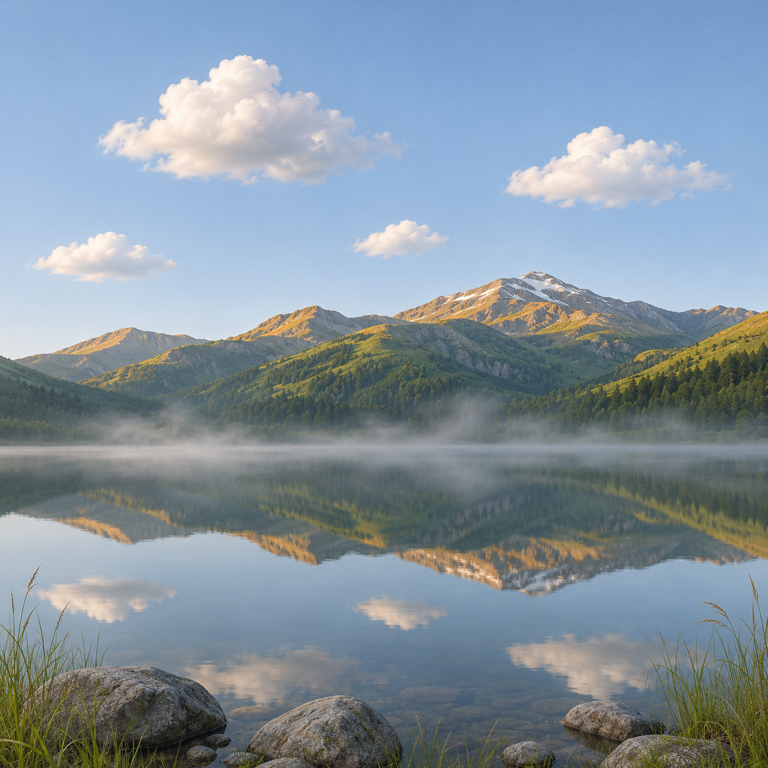
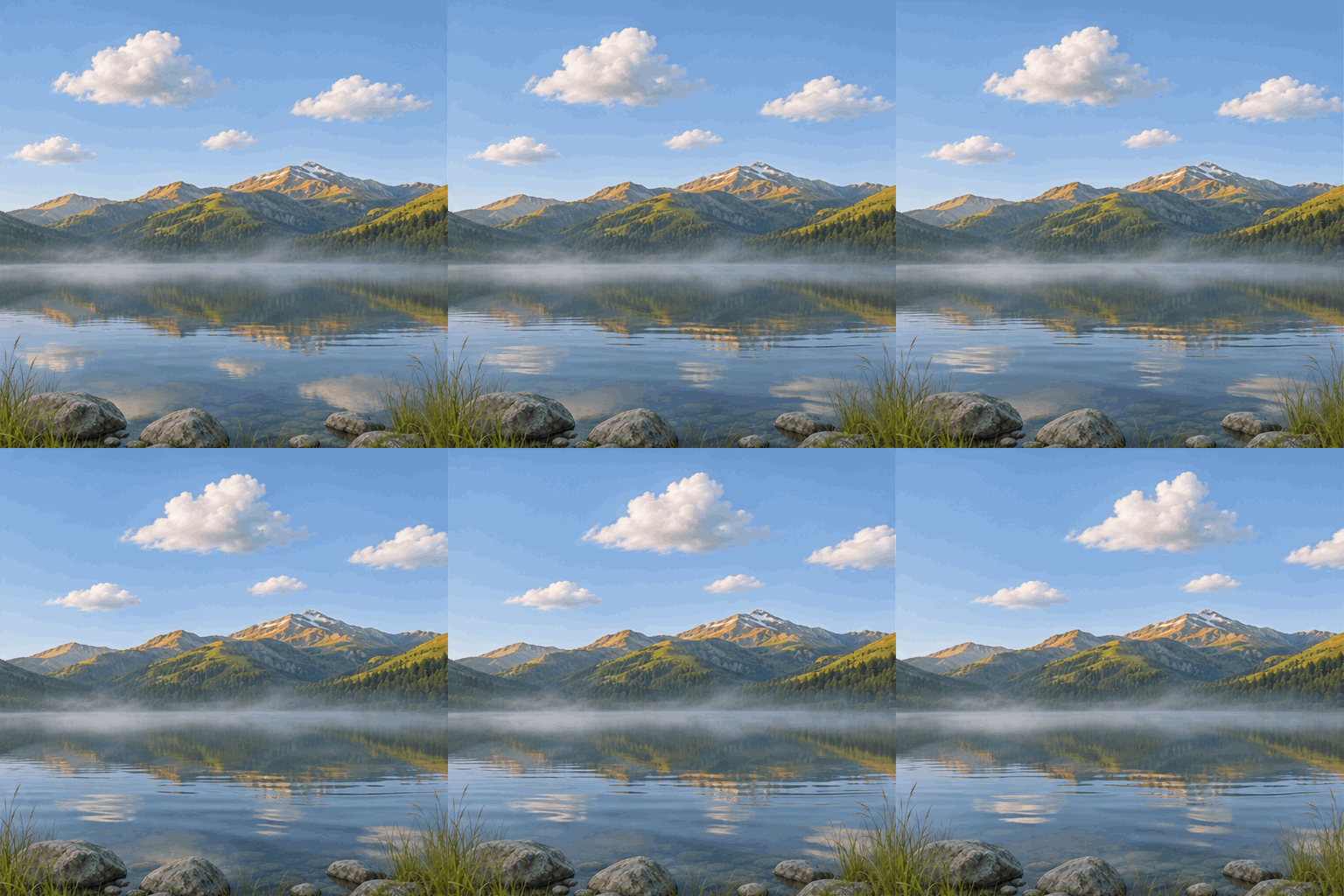
Nature scene
PromptMake the water ripple and the clouds drift slowly. Keep the camera still.
OriginalGIF
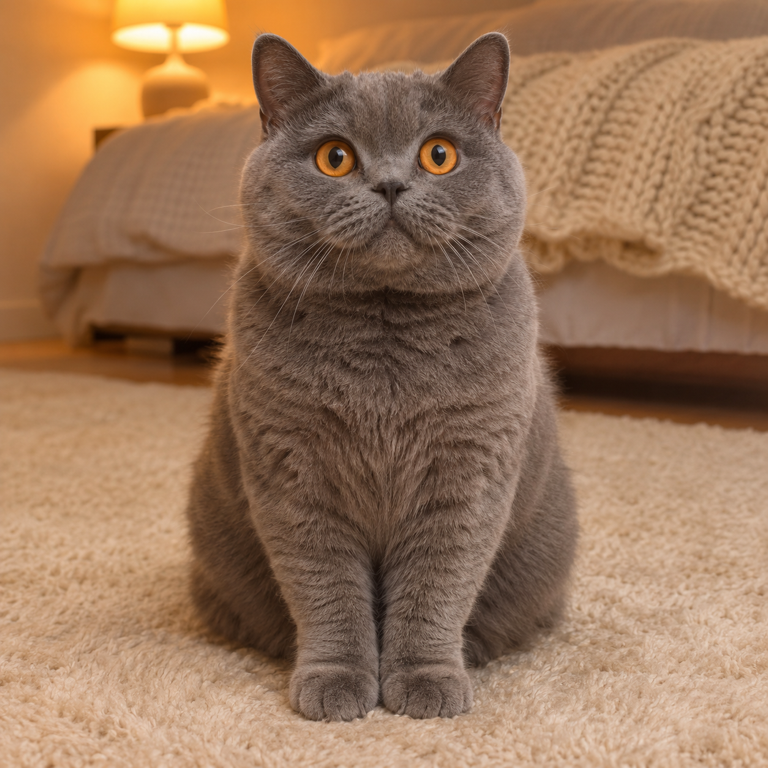
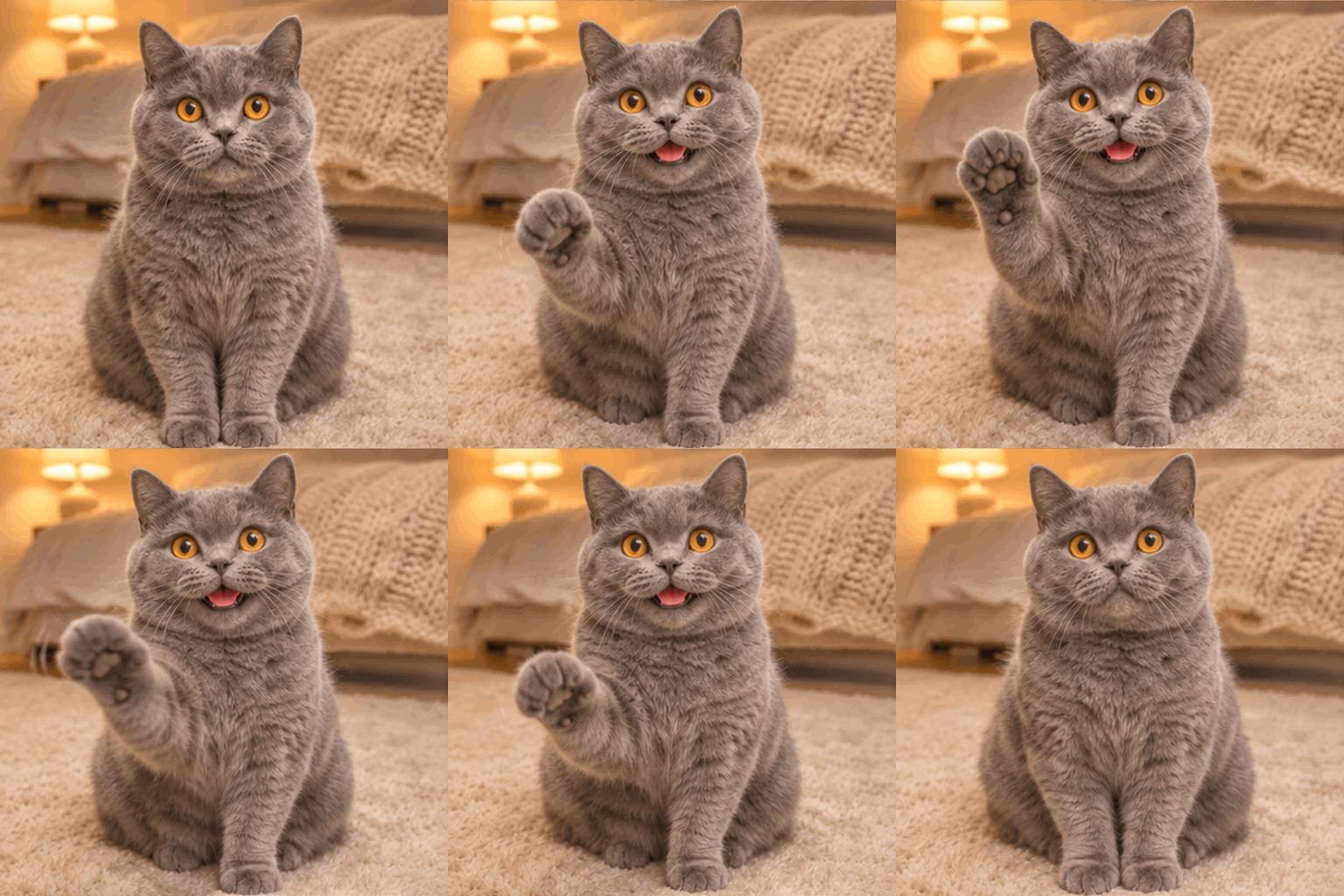
Reaction
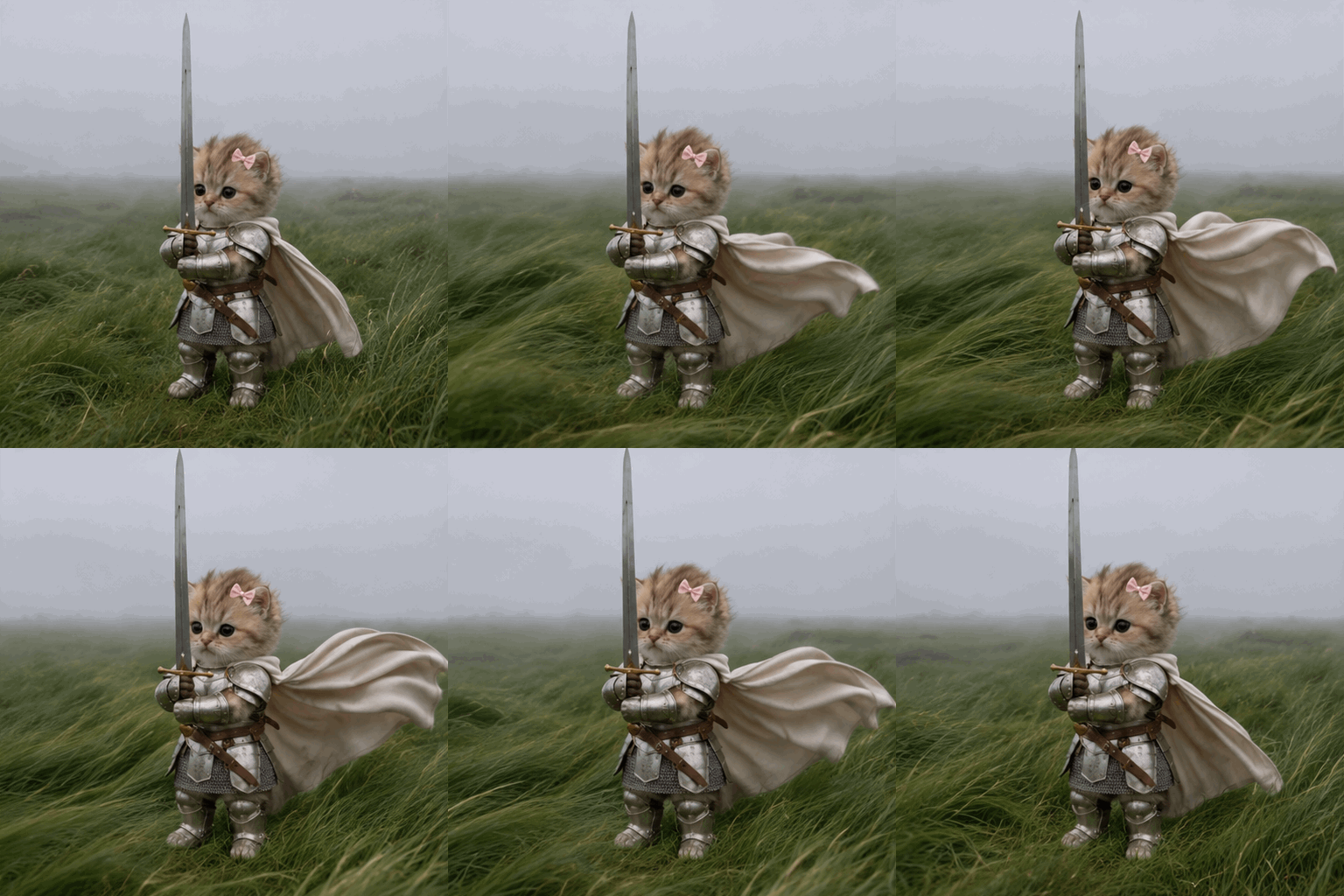
PromptMake the cat smile, raise one paw and wave hello.
Recreate loads the example picture and prompt into the generator. Nothing is generated until you select Generate GIF.
How to Use Photo to GIF AI in 3 Steps
Wondering how to turn a picture into a GIF with AI? Here's how to make an AI GIF from a picture in three steps, with no frames to edit.
1
Image 1
Add imagesJPG, PNG, WebP
Upload your photo or picture
Select Image to GIF and upload a JPG, PNG or WebP file. This picture to GIF AI tool accepts up to 16 images, each up to 10 MB and 16 MB in total. Every image is checked before generation starts.
2
Image 1
Generate GIF
Describe the movement
Tell the photo to GIF AI what should move and what should stay the same, such as "Make the dog tilt its head. Keep the background still." If you upload more than one picture, type @ to refer to Image 1, Image 2 and so on.
3
0.5×1×2× Download GIF
Generate, adjust speed and download
Sign in, check the credit cost on the button and select Generate GIF. Our AI image to GIF maker shows the status in the preview panel while it turns your image into a GIF. When your GIF is ready, set the speed from 0.25× to 2× and select Download GIF; the file keeps the speed you choose. You can also find it in My GIFs for 30 days.
What You Can Make with Image to GIF AI
Once your picture moves, where will it go? Here are a few popular ways to use image to GIF AI. Each one comes with an example you can recreate and make your own.
Animated Profile Pictures from Your Photos
Give your profile picture a little life. Upload a selfie, an avatar or a character portrait and ask image to GIF AI for a blink, a smile or a slow head turn. The square loop suits profile pictures; check that your platform accepts animated images before you set it.
Reaction GIFs from Your Own Pictures
With AI image to GIF, a photo of yourself or a favorite character becomes a reaction for group chats: a thumbs up, a surprised look or a wave hello. Keep the movement simple so it still reads at a small size.
Turn Your Pet Photo into a GIF
Make an AI photo to GIF of your pet with a head tilt, a tail wag or a slow blink. Short, gentle movements keep your pet looking like themselves, so the GIF is ready to share with friends and family.
Animate Logos, Icons and Mascots
Our AI GIF maker from image can add a soft glow, a gentle bounce or a friendly wave to a logo, an app icon or a mascot for social posts, websites and emails. Simple shapes and bold colors work best; check that any lettering stays clear before you use the GIF.
Bring Artwork and Characters to Life
With picture to GIF AI, hair can move in the wind, eyes can blink and a cape can flutter in your drawings and original characters. Share the loop with your followers or add it to your portfolio.
Image to GIF AI Prompt Tips
A good image to GIF prompt describes the movement, not the picture. The AI can already see your image, so use your words to say what should move, how it moves and what should stay the same. When you use image to GIF AI with prompt text like the examples below, your loops look cleaner and stay closer to your original.
One movement
Pace
What stays the same
01
Pick one movement, with a direction and a pace
One clear action, such as a slow blink, a gentle wave or a head tilt to the left, is the easiest way to turn a still image into a moving GIF that looks smooth. Words like "slowly" and "gently" help; vague requests like "make it move naturally" don't.
TryMake the cat blink slowly.
02
Say what should stay the same
If only part of the picture should move, name the parts to keep. This helps the photo to GIF AI hold on to faces, outfits, logos and backgrounds, although small changes can still happen.
TryLet her hair blow gently in the wind. Keep her face and outfit unchanged.
03
Keep the camera still
When the subject's movement matters most, ask for a still camera so your AI image to GIF result doesn't zoom or pan away from it.
TryKeep the camera still. Make the flag wave gently.
04
Choose movements that can loop
A GIF repeats, so pick actions that return to where they started: breathing, swaying, blinking, a flicker or a soft glow. One-way actions, like walking out of the picture or something breaking, can't loop cleanly.
TryMake the candle flame flicker gently. Keep the rest of the room still.
05
Start with a clear picture
A sharp image with the whole subject in view gives the AI more to work with. Cropped paws, hands or heads are harder to animate.
Image 1Image 2
GIF
06
Name each picture when you use more than one
When you upload several pictures, type @ to refer to Image 1, Image 2 and so on, and say what each one should do.
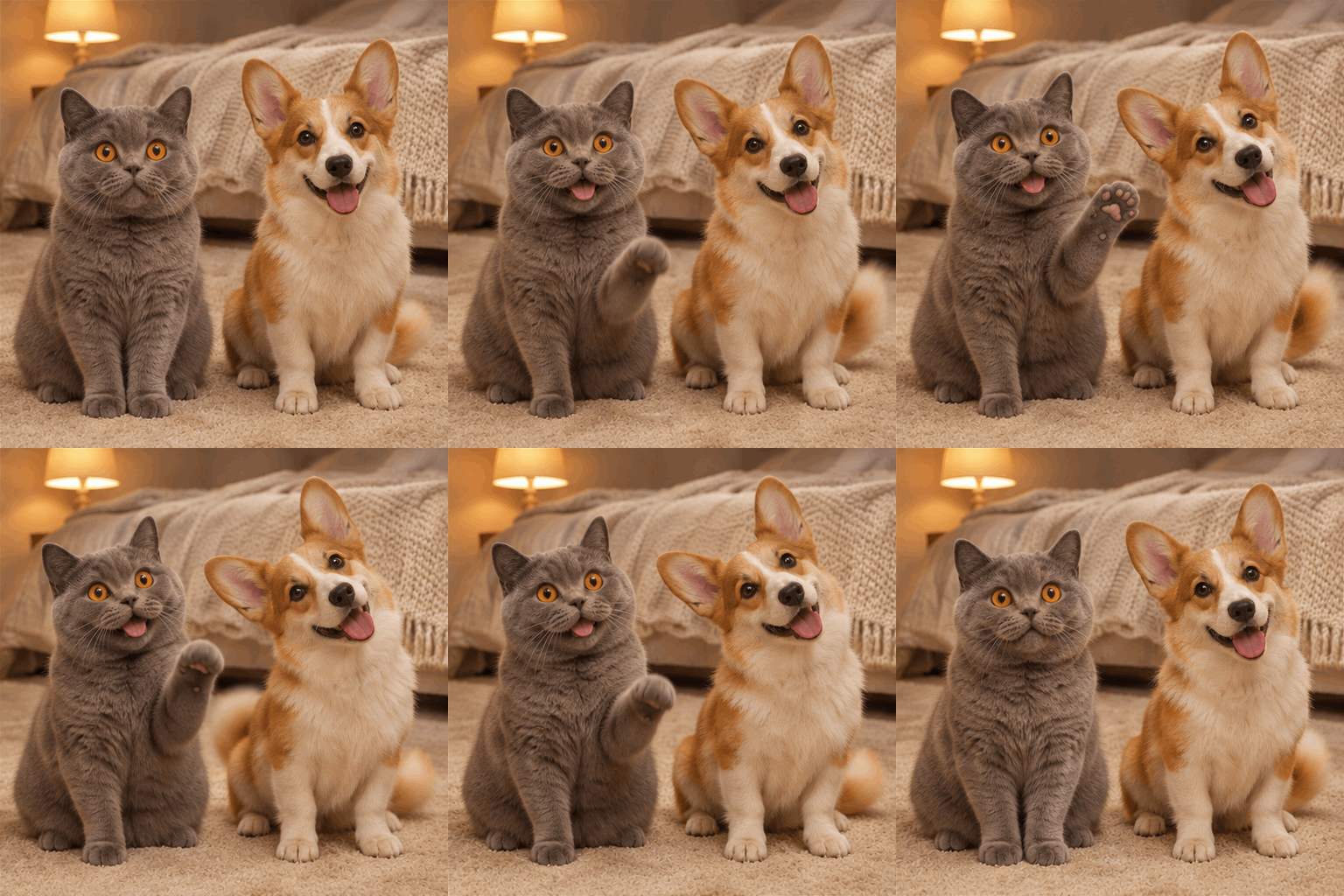
TryPut the gray cat from Image 1 and the corgi from Image 2 side by side on the same cozy bedroom rug, both facing the camera. The cat smiles, raises one front paw and waves hello at the dog. The corgi tilts its head and wags its tail happily. Keep both animals' faces and fur colors unchanged, keep the warm lamp-lit bedroom background, and keep the camera still.
Not quite right? Change one detail in your prompt at a time and generate again, or adjust the playback speed from 0.25× to 2×.
Image to GIF AI vs. Image to GIF Converters
If you're looking for an image to GIF converter AI, it helps to know how AI animation differs from a classic converter. A converter puts the images you upload in order and plays them one after another, like a slideshow. With static image to GIF AI, one picture is enough: the AI creates new movement that wasn't in the original.
123GIF
Image to GIF converter
What you upload
Several images or frames
Where the motion comes from
Your own frames, shown in order
What you control
Frame order, time per frame, size, crop, loop count and text
What you get
A GIF made from your own frames, at the size you choose
A square, looping GIF of 9 frames, about 1.8 seconds long
Best for
Making a single photo, drawing or logo move
Image to GIF AI FAQ
Is image to GIF AI free on AIGIFGO?
You can try image to GIF AI free on AIGIFGO: new accounts get free credits when they sign in for the first time. After that, each GIF uses credits, and the Generate GIF button shows the cost before you start. If you're looking for image to GIF AI free with no sign-up, note that you need an account to upload pictures here.
Can AI turn a photo into a GIF?
Yes. AI can create GIFs from an image by generating new movement instead of stitching frames. Upload a photo, describe what should move, and our AI image to GIF generator returns a short looping GIF.
What's the best image to GIF AI?
It depends on what you need. AIGIFGO is built for short, square, looping GIFs made from one picture, such as a blinking portrait, a waving pet or a glowing logo. For longer or widescreen clips, an image-to-video tool is a better fit, and for stitching your own frames, use a GIF converter.
Can I upload more than one image?
Yes. Our images to GIF AI flow accepts up to 16 pictures in one request. Type @ to refer to Image 1, Image 2 and so on, and describe what each one should do.
Why can't I upload my photo?
Check the file first: you can upload JPG, PNG or WebP images up to 10 MB each and 16 MB in total. Every image is also checked before generation, and pictures that don't pass the content review can't be used. If a task is stopped this way, its reserved credits are released.
Why does my GIF look choppy?
Each GIF is a short loop, so big or fast movements can look jumpy. Ask for one gentle action, keep the camera still, and try a slower playback speed. See the prompt tips above for examples.
Will the AI change the face or other details?
The photo to GIF AI redraws your picture for each frame, so small changes can happen. Name the parts that should stay the same, such as the face, outfit or logo, and keep the movement small to stay closer to your original.
Does the GIF have a watermark?
No. GIFs you create and download on AIGIFGO don't include a watermark.
How long is the GIF, and how long is it saved?
Each GIF has 9 frames and runs about 1.8 seconds at normal speed before it loops. You can change the playback speed from 0.25× to 2× before downloading. Your results stay in My GIFs for 30 days, so download any GIF you want to keep.
Turn Your Next Picture into a GIF
Pick a photo, a drawing or a logo and give it one simple movement. From pet portraits to character art, AI picture to GIF takes only a short prompt, and our AI GIF generator from image turns it into a looping GIF you can download and share. Don't have a picture yet? Start from a description with Text to GIF.
 IF